

Activate: Advising & Registration
Pre-Reqs: access to Activate happens 24-48 hours after you have completed Prepare
Time needed: 1-3 hours
Details: During Activate, you’ll learn about academic requirements and connect with academic advisors who will help you select and register for your first term of courses. The Activate stage happens in Beaver Hub, the student dashboard for tools and resources that support your OSU experience.
Troubleshooting:
- You will not be able to begin this step until there are Success Plan Tasks in your Beaver Hub. These tasks will go live 24-48 hours after you’ve completed Prepare.
- Reminder: You must register for courses! Activate isn't complete until you have selected courses for your first term at Oregon State.
What’s next? Participate in Launch (virtual or in-person Orientation program)
Getting Started
Your Activate Success Plan Tasks will not appear until 24-48 hours have passed after completing Prepare.
- First, you will complete a variety of Success Plan Tasks created by your academic college. These will help prepare you for engaging with an advisor or advising team from your major.
- Log into Beaver Hub. We encourage you to you use a desktop, laptop, or tablet for this process, if possible.
-
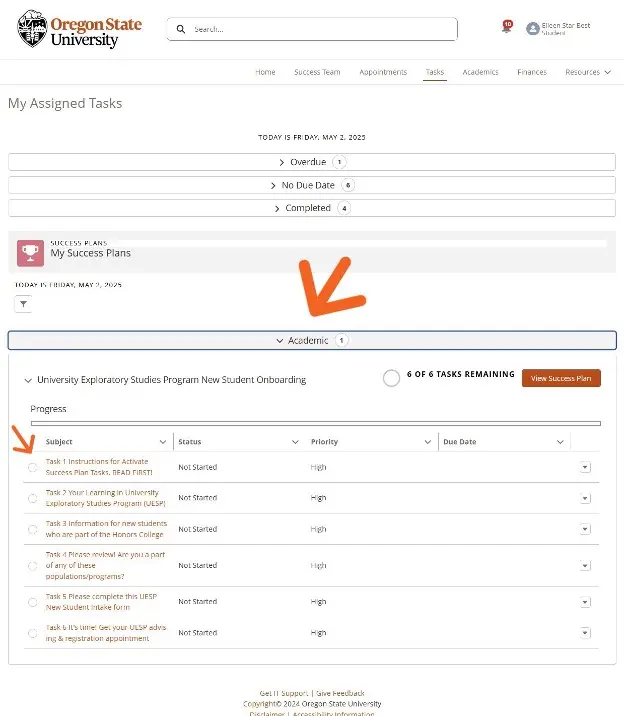
From your Beaver Hub homepage, click on the "Tasks" menu item from the top menu bar. You may also see a "Tasks" card on the home page. You can click on the New Student Onboarding Success Plan item listed there.
-
If you do not have Success Plan Tasks in your Beaver Hub, this is because it has not been 24-48 hours since you completed Prepare. Please check back later for access. If 48 hours have passed since completing Prepare, please try our troubleshooting options.
-

2. Second, upon completing your Success Plan tasks, you'll see specific details on how to get an advising appointment based on your college and major.
3. Third, attend your scheduled advising appointment and register for your first term of classes.
Navigating the Success Plan Tasks:
You will have 4-8 tasks to complete within your Success Plan, depending on your academic college. Success plans are tailored to your specific academic college, and your tasks might vary slightly from other students' tasks.
- To access your Success Plan Tasks, click on the “Tasks” tab from your Beaver Hub dashboard.
- On the Tasks screen, look for the "My Success Plans" section and click on the > arrow symbol to open the Success Plan.
- Within Task 1, start by reading the instructions carefully and make sure you complete the tasks in order!
- The final task in the Success Plan, regardless of how it's described in the subject label, will lead you to schedule your advising and registration appointment.
Accommodations:
To request accommodations for completing the Activate: Advising & Registration modules, contact OSU's Disability Access Services office for assistance.

Troubleshooting:
What if I’m in Beaver Hub and don’t see a Success Plan in my Tasks area?
- Ensure that you have completed Prepare Online Modules and that is has been 24-48 hours since you've submitted the final quiz.
What if I get stuck or confused while I’m working through my Success Plan?
- The Success Plan Tasks are largely short and self-explanatory and will often take you out of Beaver Hub to another site with more detailed content. We want you to complete Tasks in order. If you get lost, just navigate back to Beaver Hub and pick up where you left off.
What if I have a success plan within my Beaver Hub that is for the wrong college or major?
- If you updated your major within Prepare online modules, it will take at least 48 hours for this change to process. We recommend checking back in Beaver Hub in the next few days before starting the "wrong" success plan.
If you're still experiencing issues after navigating these troubleshooting tips, reach out to the Office of New Student Onboarding. Call our office at 541-737-7627, or send us an email.